
Unity handoff
Import the handoff in Unity
Install the ArtFlow importer, bring in sprites and layout JSON, then verify reconstructed uGUI behavior.
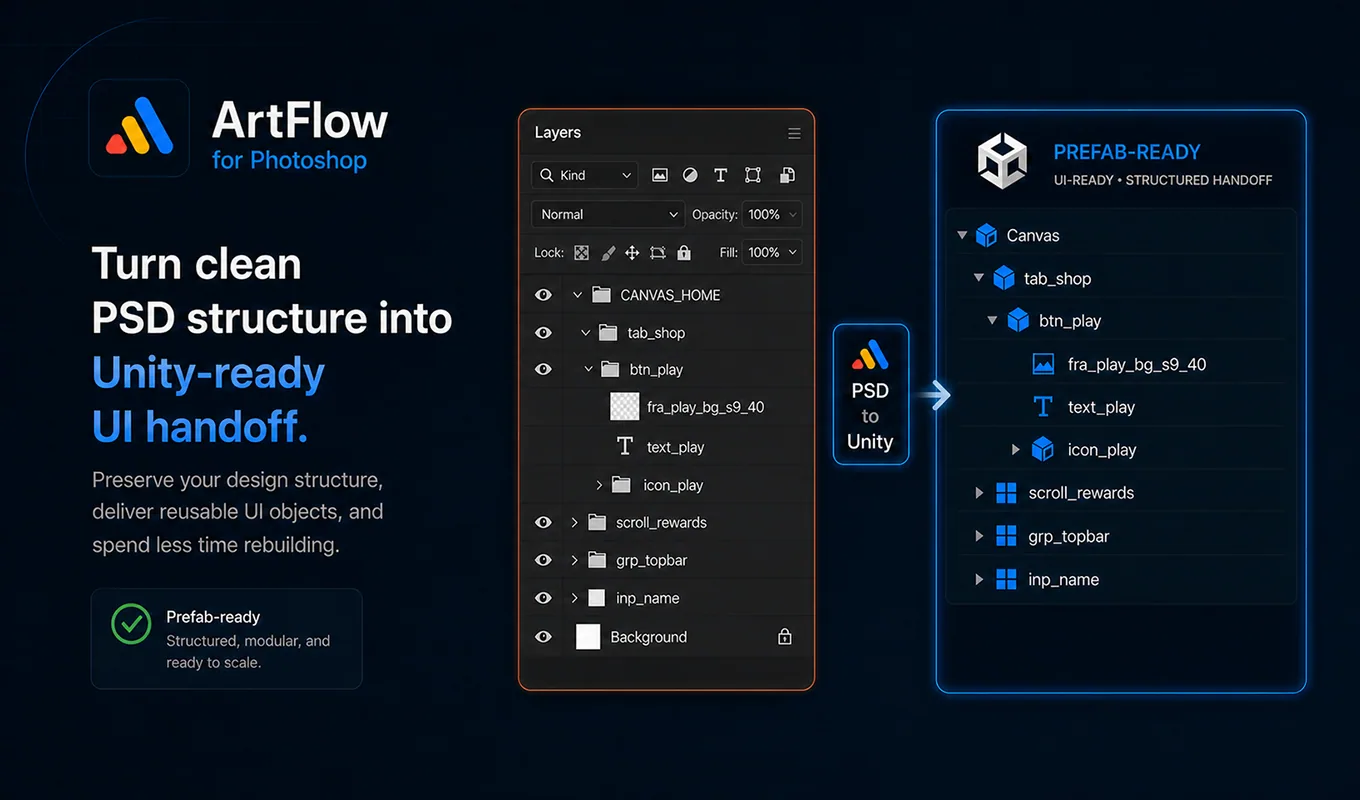
Before importing
A Unity handoff contains exported sprite files and a layout JSON file. Keep the exported structure together until the import is complete.
Use a supported Unity project with uGUI available. Back up or commit the project before testing a new importer version on production assets.
Install the importer
Copy:
PipelineProImporter.csto:
Assets/Editor/Unity compiles editor scripts automatically. Resolve compilation errors before opening the ArtFlow import command.
Import the layout
- In Unity, open Tools > ArtFlow > Import Layout.
- Select the exported layout JSON.
- Choose the destination requested by the importer.
- Wait for asset import and hierarchy creation to finish.
- Inspect the created Canvas or layout root.
Do not move or rename sprite files during the import. References are resolved from the exported data and asset paths.
What the importer can reconstruct
Depending on the exported names and data, the importer can prepare:
- RectTransform hierarchy and relative placement
- Image and Text-oriented objects
- anchors and stretch behavior
- sliced Image setup from
_s9... - Button state graphics
- Toggle child roles
- Slider fill and handle relationships
- ScrollRect viewport and content structure
- input field background, text, and placeholder
- bar fill behavior
- safe-area aware structure where exported
The importer reduces repetitive assembly. It does not know game logic, navigation destinations, localization keys, data binding, or animation intent unless your Unity project adds those systems.
Verify the result
Check the hierarchy in this order:
- Canvas reference resolution and root scale.
- Large background and panel alignment.
- anchors at several Game view aspect ratios.
- sprite import mode and alpha.
- 9-slice borders and Image type.
- button, toggle, slider, input, and scroll references.
- text content, font mapping, alignment, and size.
- active, hidden, locked, and disabled states.
Test at least one tall mobile aspect and one wider aspect. A layout that matches only the source PSD size has not yet proven its anchors.
Text and fonts
Photoshop and Unity do not share an identical text engine. ArtFlow carries text and font context forward, but the Unity project must contain the intended font asset.
When using TextMeshPro, provide a valid Assets/... .asset path in the font mapping. Duplicate PSD font mappings or invalid TMP paths should be resolved before relying on automated text setup.
Expect to review line wrapping, kerning, fallback glyphs, and vertical alignment. These are engine-level differences, not necessarily export failures.
Reimporting safely
Treat the generated hierarchy as pipeline output until it has been accepted. If developers add game logic directly to generated objects, define a team rule for reimport so a later handoff does not overwrite or duplicate their work.
A practical model is:
- ArtFlow owns imported visual hierarchy and sprite updates.
- Project scripts own gameplay behavior and data.
- Prefab wrappers or integration scripts connect the two.
When import looks wrong
Return to the Photoshop review report first. Confirm that the affected object had valid bounds, a useful role prefix, and non-conflicting layout metadata. If the JSON is valid but Unity behavior is wrong, record the Unity version, importer version, object name, and relevant JSON node before changing the source PSD.