
Start here
Getting started
Install ArtFlow, open the panel, understand its safety controls, and complete a first production task.
Before you install
ArtFlow 1.3.5 supports Adobe Photoshop 23.3 or later on Windows 10 and Windows 11. Save active documents before installing or updating any Photoshop plugin.
New installations start in English. You can change the interface language at any time in Settings. ArtFlow remembers the selected language for later sessions.
Install from Adobe Creative Cloud
- Open the ArtFlow listing in Adobe Exchange.
- Choose Buy or Install, then allow Creative Cloud Desktop to complete the installation.
- Restart Photoshop if it was open during installation.
- In Photoshop, choose Plugins > ArtFlow: Workflow Toolkit for Adobe Photoshop.
- Dock the panel beside Layers if you want to inspect selection and naming changes together.
If Creative Cloud reports an installation error, close Photoshop, confirm Creative Cloud is signed in with the purchasing Adobe account, and retry from the listing.
Learn the panel structure
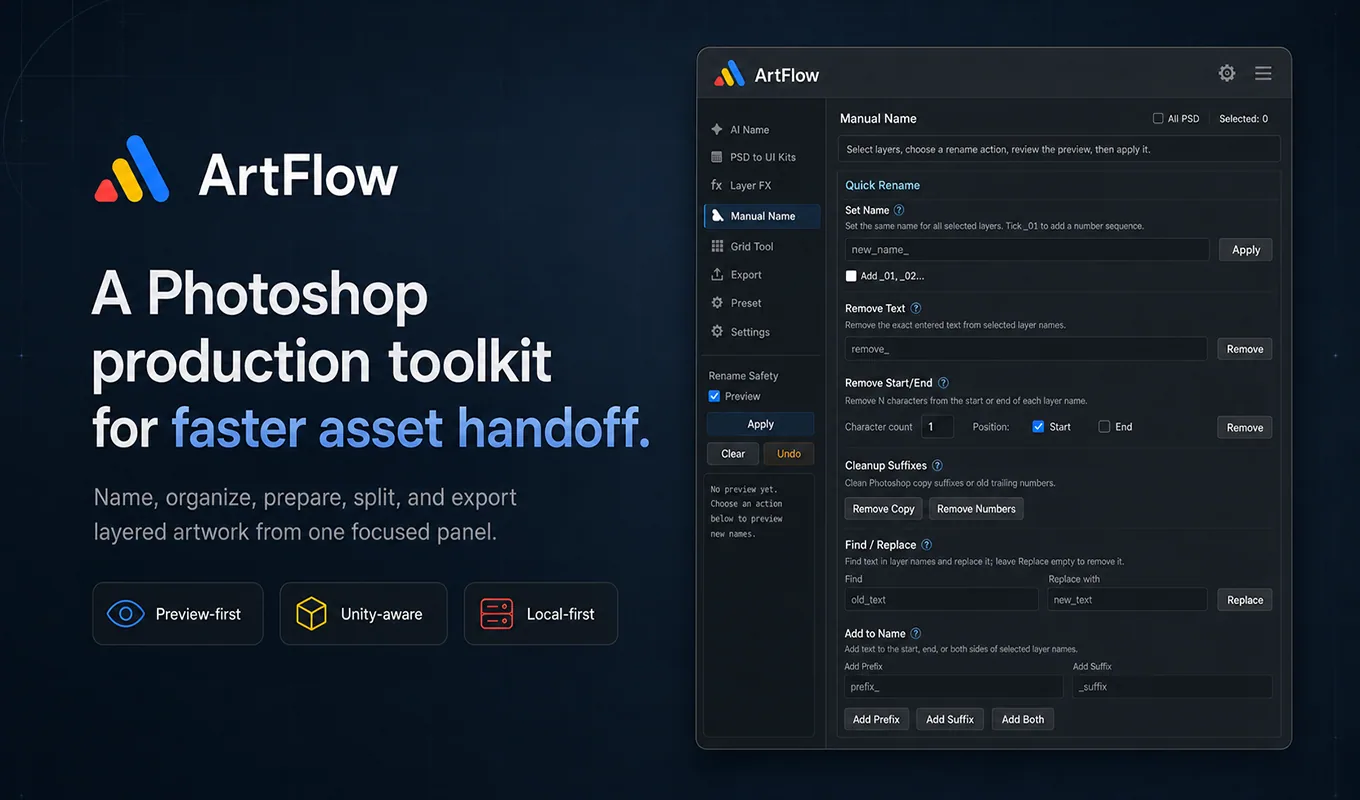
The left navigation contains the main workflows:
| Area | Use it for |
|---|---|
| AI Name | Generate and validate visual naming suggestions |
| PSD to Unity | Scan, prepare, and export a Unity-oriented handoff |
| Layer FX | Copy, clean, and prepare layer effects or split content |
| Manual Name | Apply deterministic batch naming operations |
| Grid Tool | Arrange assets or split an atlas |
| Export | Deliver files in one or more formats |
| Preset | Reuse naming and export configurations |
| Settings | Language, API keys, visible tabs, and naming configuration |
The top-right selection count reflects the Photoshop layers currently in scope. Most actions use selected layers; read the source control in each tool before running a whole-document operation.
Use Preview, Apply, Clear, and Undo
Rename workflows share the safety area in the left rail.
- Keep Preview enabled while learning the tool.
- Run an AI or manual naming action.
- Inspect every
old name -> new namerow. - Choose Apply only when the proposed names match your intention.
- Choose Clear to discard the current proposal.
- Choose Undo to reverse the last supported rename batch after it was applied.
Preview protects naming changes. Export, layer conversion, splitting, and some Layer FX actions have their own confirmation or transaction behavior and do not use the rename preview list.
Complete a first safe task
Try this with a copy of a small PSD:
- Select three ordinary layers.
- Open Manual Name.
- Add a harmless prefix such as
test_. - Review the proposed names in the left rail.
- Apply the change.
- Use Undo and confirm the original names return.
This verifies panel access, Photoshop selection, preview rendering, Apply, and Undo without requiring an API key.
What ArtFlow stores
ArtFlow stores panel preferences, presets, and user-supplied API keys in local UXP plugin storage. Normal non-AI workflows run locally. AI Name contacts Google Gemini only when you explicitly run an AI operation; TinyPNG is contacted only when that optimization method is selected.
Next steps
- Configure optional services in Settings and API keys.
- Learn deterministic cleanup in Manual Name.
- Prepare a game UI file with PSD to Unity.