
Unity handoff
Prepare a Unity handoff
Scan the PSD, repair naming issues, add layout intent, and export reviewable sprites and layout data.
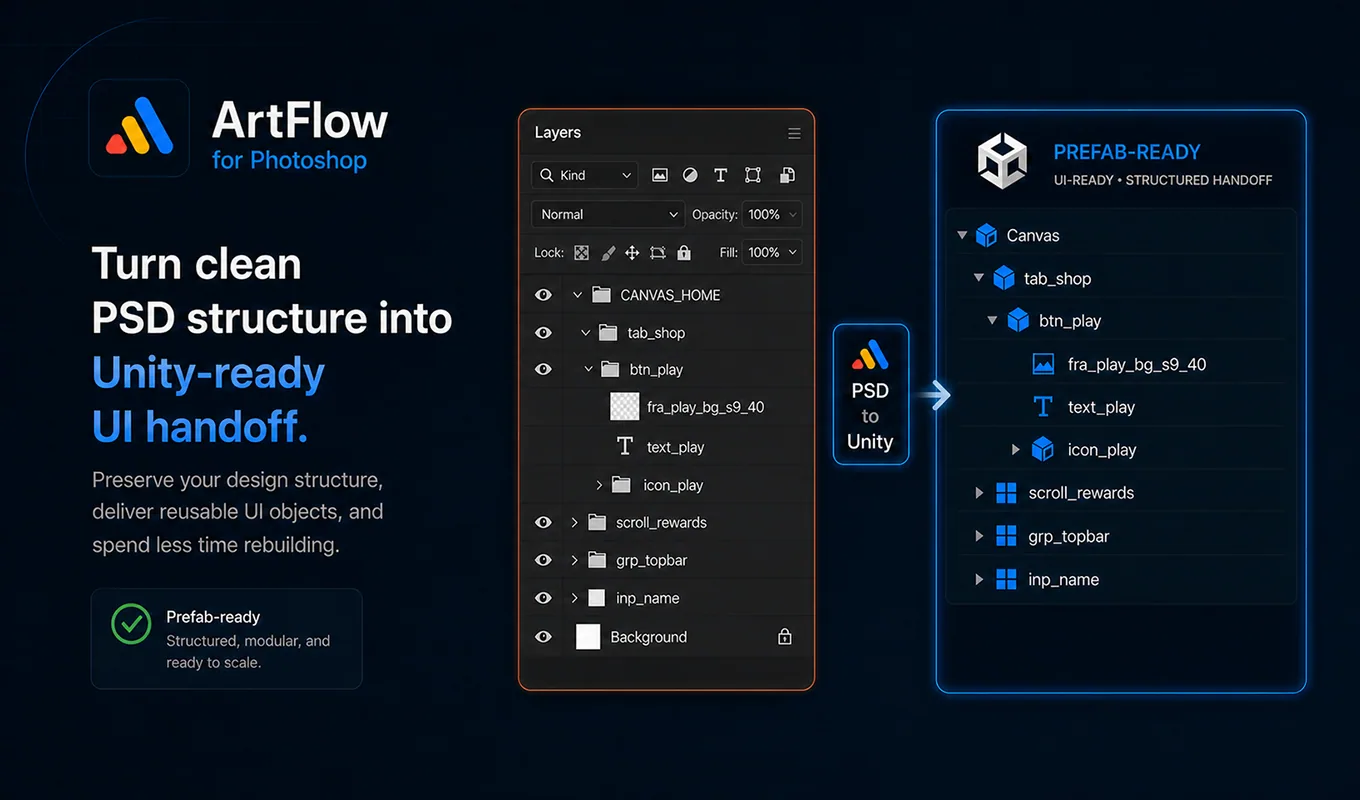
Understand the handoff contract
PSD to Unity does not convert a finished Photoshop composition into final game logic. It carries useful visual structure and naming intent forward so the Unity team starts closer to the designed result.
The pipeline can export sprite files, hierarchy, positions, sizes, text data, anchors, stretch intent, 9-slice metadata, and component-oriented names. Developers still review fonts, interaction logic, layout adaptation, and project-specific scripts.
Prepare the PSD
Before scanning:
- Save the PSD.
- Remove accidental empty layers and obsolete hidden experiments.
- Keep related UI parts in meaningful groups.
- Use text layers for text that should remain editable.
- Confirm layer bounds do not include unintended pixels or effects.
- Name obvious roles with the active prefix convention.
Avoid flattening an entire interface into one layer if Unity needs separate interaction, animation, text, or responsive layout.
Step 1: Scan PSD
Open PSD to Unity and choose Scan PSD. The scan builds a review model of the current hierarchy. Inspect the summary and expand scan details when the count does not match your expectation.
The review identifies weak names, duplicates, unsupported combinations, elements that may need code, and layers that are likely safe.
Step 2: Review and repair names
Use issue navigation to move through flagged layers. Highlight issues when you need labels in the Layers panel, then clear labels after the review.
ArtFlow uses four practical states:
| State | Meaning |
|---|---|
| Weak | Name is vague, malformed, or does not communicate a supported role |
| Needs code | Visual intent cannot be reconstructed safely without developer logic |
| Duplicate | Name collides within the relevant export scope |
| OK | Name passes the current technical checks |
Prefix chips apply a role to selected layers. State and child-role chips append supported suffixes. Component templates can prepare a selected group and its direct children for Button, Tab, Toggle, Slider, Input, or Scroll structures.
Do not choose a prefix only because it produces a green status.
btn_means an interactive button object;ic_means a visual icon;fra_means a visual container or frame.
Step 3: Add layout intent
When geometry alone is not enough, add supported metadata such as:
fra_shop_panel@anchor=top_right
bg_dialog@stretch=full
fra_reward_s9_24
Use explicit metadata when the intended responsive behavior differs from what the PSD position suggests. Keep values consistent with the project profile and verify them again in Unity.
Step 4: Export
Choose the output folder and export options, then run the Unity export. Keep the generated layout data and sprite folder together. If ArtFlow reports a technical blocker, resolve it and rescan before exporting again.
After completion:
- Read the summary and review file.
- Confirm expected sprites exist.
- Check that text intended to remain editable is represented as text data.
- Keep the source PSD unchanged until Unity verification succeeds.
Handoff checklist
- No unresolved duplicate names.
- Interactive controls use supported component structures.
- Visual-only children are not mislabeled as interactive objects.
- Button states use consistent suffixes.
- 9-slice values fit the actual border artwork.
- Anchors and stretch metadata match intended responsive behavior.
- Fonts and project code requirements are documented for the developer.
- Unity import is treated as a starting hierarchy, not an unquestioned final prefab.