
Production tools
Pack and split grids or atlases
Arrange selected layers into a grid or split pixel and Smart Object atlases into safe PNG cells.
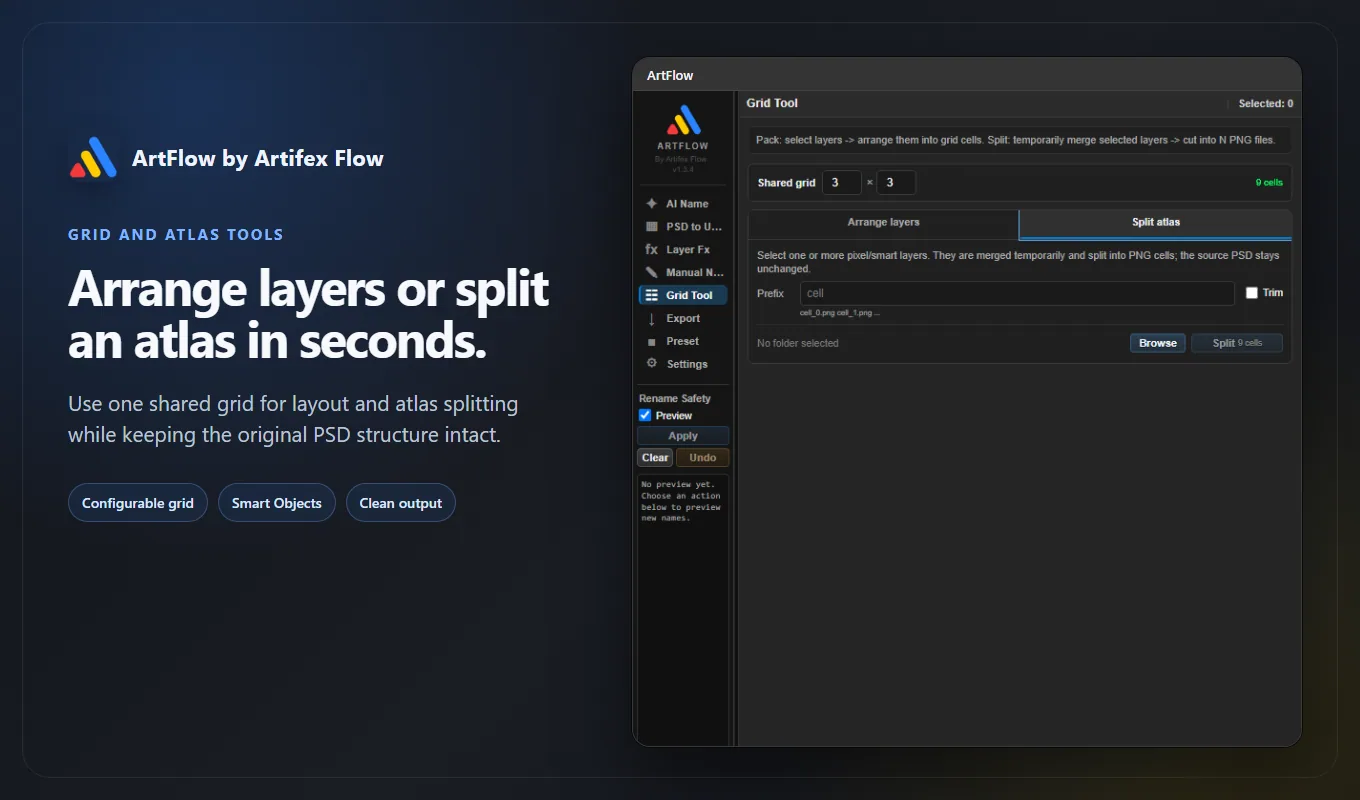
Choose Pack or Split
Pack arranges selected Photoshop layers into cells on the current canvas. Split reads one or more pixel or Smart Object layers as an atlas and exports individual PNG cells.
Set the row and column count before choosing either operation.
Pack selected layers
- Select the layers in the intended order.
- Set rows and columns.
- Enable Fit to cell only when resizing is acceptable.
- Enable Guides if the PSD should retain visible grid boundaries.
- Choose Pack.
ArtFlow places as many selected layers as the grid contains. Extra layers are ignored and reported. If the canvas is too small for a valid cell size, the operation stops.
Fit-to-cell changes scale to fit the available area. Inspect small text, pixel art, and sharp UI edges after scaling.
Split an atlas
- Select one or more pixel or Smart Object layers.
- Set the exact source rows and columns.
- Enter an output prefix.
- Choose whether transparent edges should be trimmed.
- Select the required output folder.
- Confirm the displayed cell count.
- Choose Split.
The cell preview follows:
rows x columns = exported PNG countArtFlow merges the selected visual source temporarily for export. The source PSD structure remains unchanged.
Naming output
With prefix cell, output follows a sequence such as:
cell_0.png
cell_1.png
cell_2.png
Choose a semantic prefix before export if the target pipeline relies on filenames.
Transparency and trimming
Trim removes empty transparent boundaries around each cell. Fully transparent cells cannot derive visible bounds, so ArtFlow reports them and may preserve the full cell dimensions.
Disable trimming when every frame must keep identical dimensions or a fixed pivot relationship.
Transaction safety
Grid Split treats a batch as one output operation. If the operation fails, partial output is cleaned where possible so an incomplete folder is not mistaken for a finished atlas.
Still verify:
- expected file count
- consistent dimensions when trim is off
- alpha edges
- sequence order
- output folder
Open the completed output folder from the log or completion action and inspect the first, middle, and last tile.