
Production tools
Export production assets
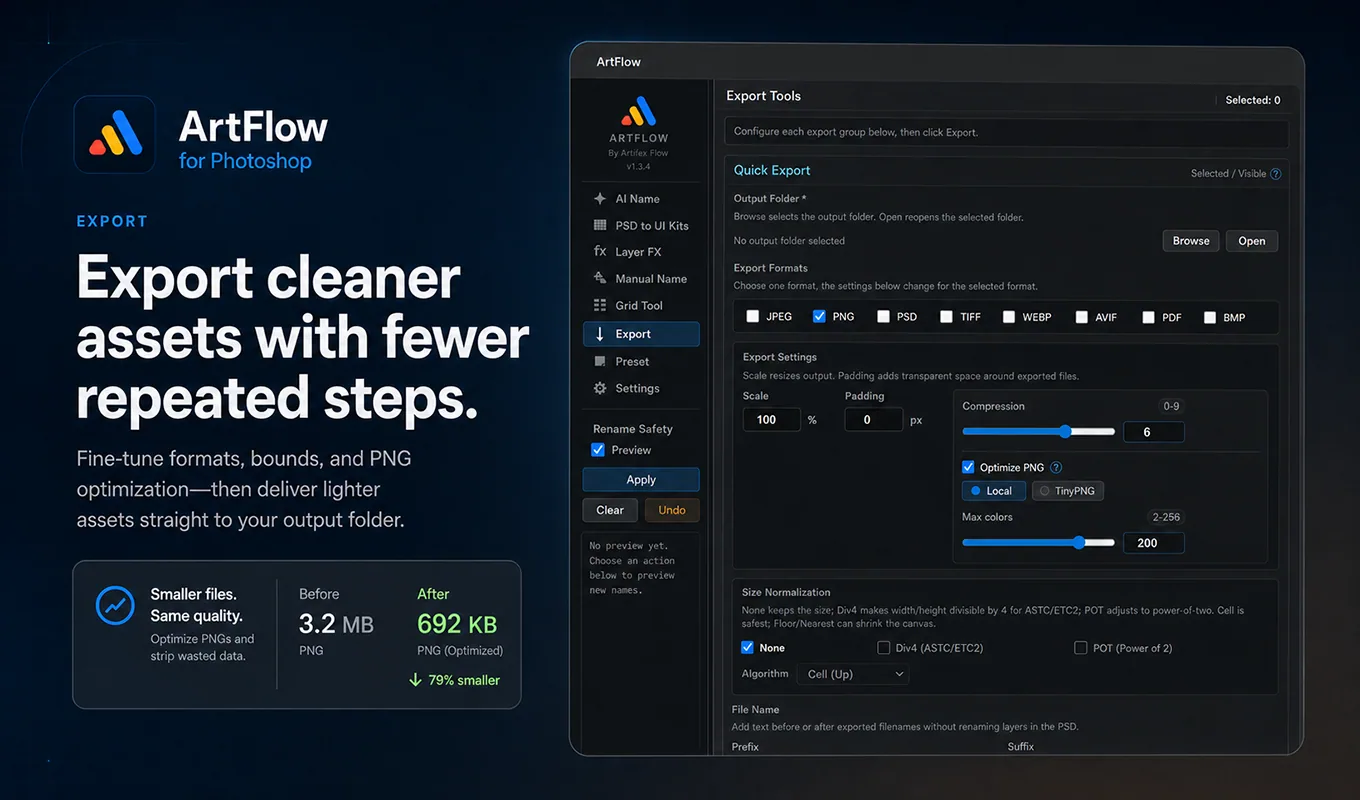
Choose source scope, formats, bounds, naming, normalization, and output behavior for repeatable delivery.
Decide what one output file represents
Start by choosing both the source scope and output mode.
- Selected limits the run to the current Photoshop selection.
- All includes the full supported document scope.
- Individual creates one file per source layer or group.
- Visible composite exports the visible result as a combined output.
Test a small selection before running a large document. Hidden children, masks, clipping, and effects can change the visible result even when the parent layer name looks correct.
Choose formats
ArtFlow supports multiple output formats, including PNG, JPEG, PSD, TIFF, WebP, AVIF, PDF, and BMP. Format-specific options appear only for the selected format.
| Format | Use it for |
|---|---|
| PNG | Transparent UI and game assets |
| JPEG | Opaque previews and photographic delivery |
| PSD | Editable downstream handoff |
| TIFF | Production interchange with compression control |
| WebP / AVIF | Modern web delivery where the target accepts them |
| Document-style output | |
| BMP | Legacy workflows that explicitly require it |
Do not assume every target engine or marketplace supports every format.
Set size and padding
Use scale for deliberate resolution variants. Padding adds transparent or background space around the exported bounds.
Size normalization can adjust output dimensions:
- None keeps calculated output size.
- Divisible by 4 is useful for pipelines that require block-aligned dimensions.
- Power of two targets texture workflows that require POT dimensions.
Choose ceil, floor, or nearest deliberately. Flooring can remove edge pixels if the workflow resizes rather than pads.
Choose bounds
- Trim uses the visible content bounds.
- PSD bounds preserves the full document canvas.
Trim is usually correct for individual sprites. PSD bounds is useful when several files must share the same origin or canvas. Inspect effects, masks, and transparent pixels when an exported file looks unexpectedly large.
Build filenames
The output preview shows how the current prefix, layer name, suffix, and format combine. Keep names filesystem-safe and compatible with the downstream project.
Choose overwrite only when replacing existing delivery is intentional. Auto-numbering protects existing files by creating a new numbered output.
Extra options
- Skip empty avoids files with no visible pixels.
- Skip hidden excludes hidden sources.
- Preserve group folders mirrors supported hierarchy in the output directory.
- Summary records completion, skips, and errors.
Preserving folders is useful for structured delivery but can surprise teams expecting a flat sprite directory.
Run and verify
- Select an output folder.
- Confirm source scope and output mode.
- Select formats and format-specific settings.
- Check bounds, size normalization, and filenames.
- Run Export.
- Inspect the summary before handing off the folder.
- Open several representative files, including the largest, smallest, transparent, and effect-heavy assets.
Save a preset only after a real export succeeds. A preset remembers configuration; it cannot guarantee that every future PSD has clean bounds or valid names.