
Production tools
Optimize PNG output
Choose local pngquant or TinyPNG, balance palette size and quality, and understand fallback behavior.
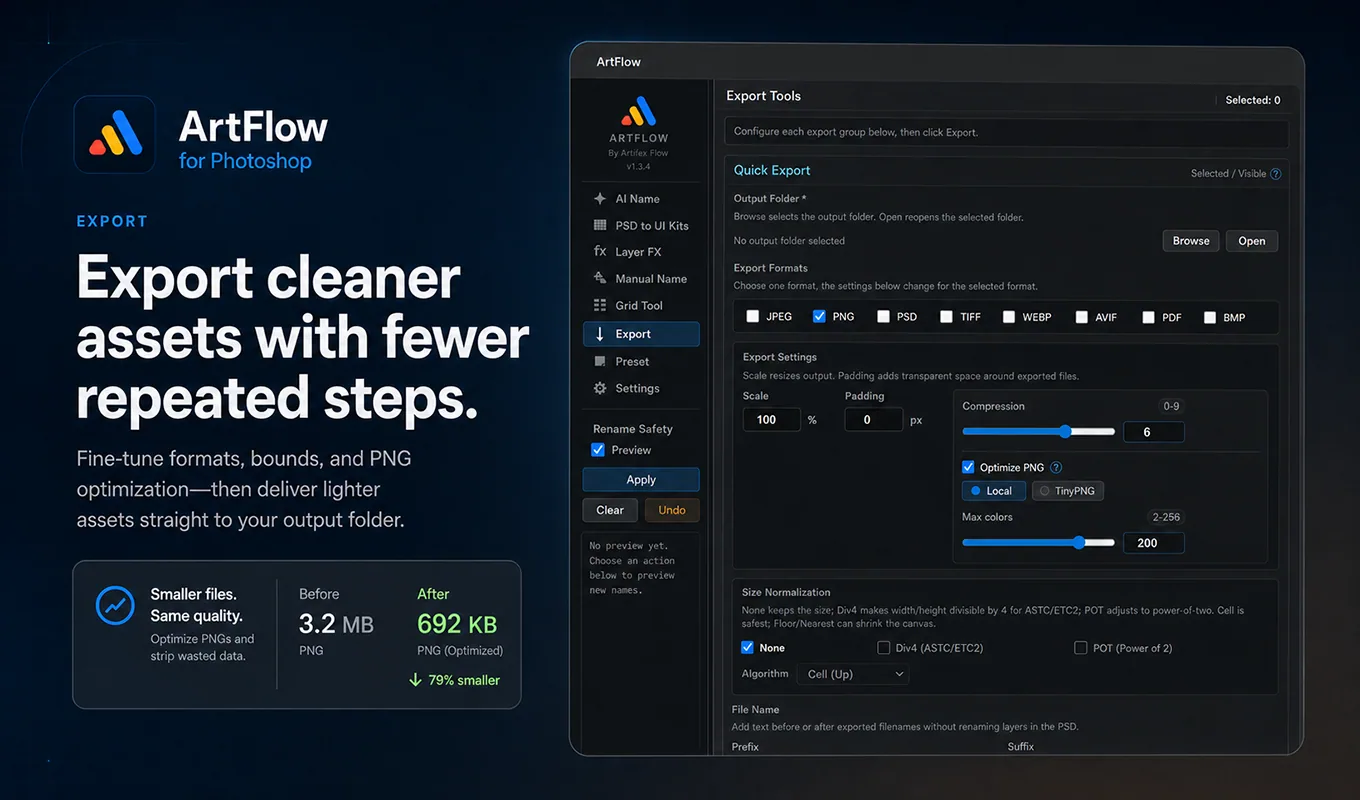
Two optimization paths
ArtFlow can optimize PNG output locally or through TinyPNG.
| Mode | Processing | Best for |
|---|---|---|
| Local | On the computer with pngquant | Private work, offline use, predictable batch processing |
| TinyPNG | Cloud API with a configured key | Strong general compression with low setup effort |
Optimization runs after export. ArtFlow compares available candidates and keeps a usable result rather than blindly replacing a file with a larger or failed candidate.
Local optimization
Local mode reduces the image to a palette with a configurable maximum color count. Lower values can reduce file size, but gradients, soft shadows, glow, and subtle transparency may show banding.
Start with a generous color limit for polished UI. Test representative files before applying an aggressive setting to the entire asset set.
Good candidates:
- flat icons
- hard-edged badges
- limited-color pixel art
- UI elements with simple shading
Review carefully:
- gradients
- translucent smoke or effects
- soft shadows
- skin tones or painted illustration
- already optimized PNGs
TinyPNG
Add your key in Settings > TinyPNG API Key, save it, and select TinyPNG in the export optimization controls.
TinyPNG requests use an external service and its quota. A valid key can still be rate-limited or exhausted. ArtFlow can rotate among saved keys where configured and can fall back to local optimization when the active workflow allows it.
Fallback and failure
If TinyPNG is unavailable, the export summary identifies whether a file:
- used TinyPNG,
- used local fallback,
- kept the original,
- or failed optimization.
The original exported asset should remain the safety baseline when an optimization candidate is invalid. A compression error must not be interpreted as a successful smaller file.
Verify quality
For a new project or preset:
- Export a small representative set.
- Compare dimensions and transparency.
- Inspect gradients and edges at 100% and against the intended background.
- Compare file sizes.
- Open the assets in the target runtime.
- Save the settings as an export preset only after acceptance.
Do not publish an exact percentage-saving claim based on one file. Compression depends heavily on the source image.
Privacy
Local mode does not need a network request. TinyPNG sends the exported image to TinyPNG for processing. Choose the mode that matches the project’s data policy.