
Production tools
Use Layer FX and split tools
Copy effects, clean disabled effects, create Smart Objects, duplicate overlays, and split text or pixel content.
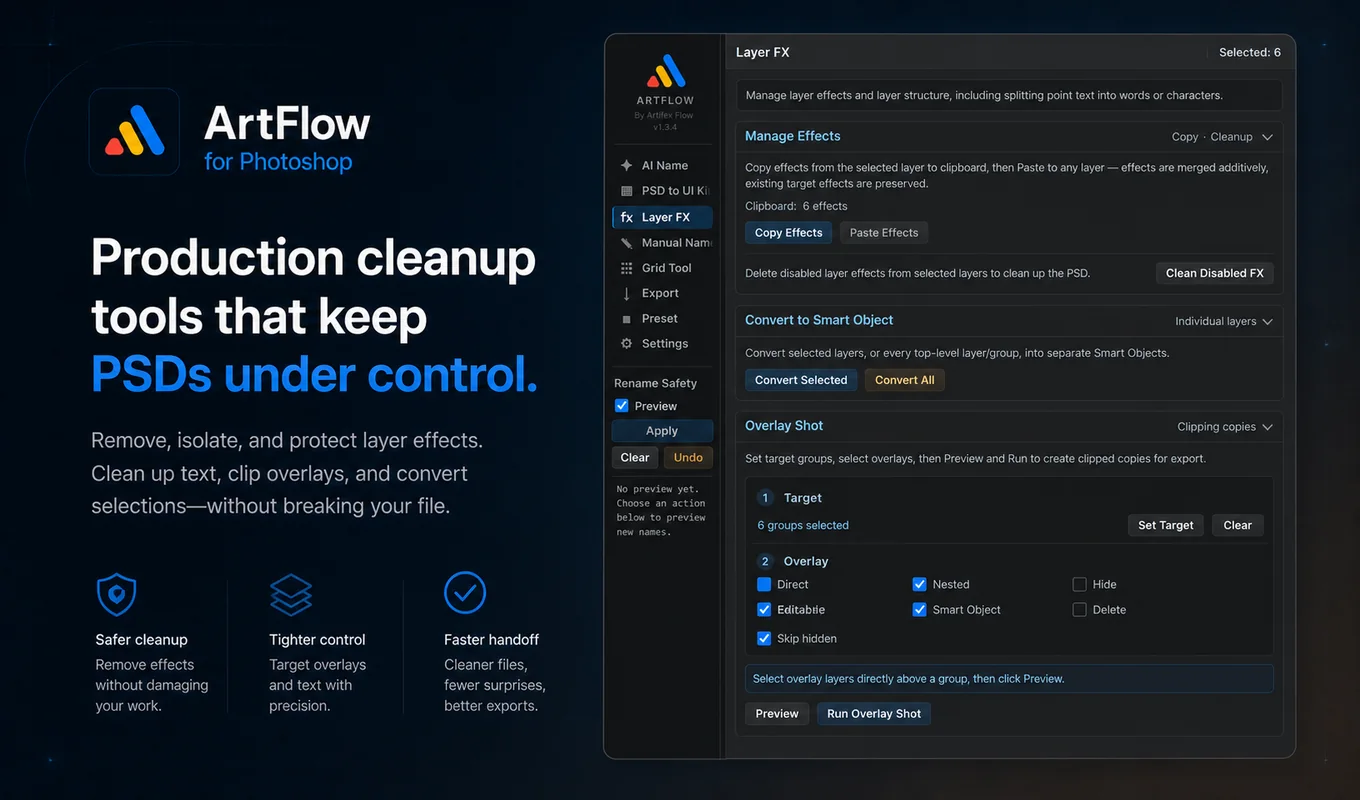
Effect clipboard
Select a source layer and choose Copy FX. The panel records the copied effect state. Select destination layers and choose Paste FX.
Paste is additive and aims to preserve effects already present on the target. Test on one representative layer before applying to a large mixed selection.
Remove unused effects
Remove Unused FX removes disabled effects from selected layers. It is intended for cleaning copied or legacy effect stacks without deleting enabled visual effects.
After cleanup, compare a few layers at the same zoom and blending context. Disabled effects should not change the current appearance, but the PSD history and future edit options will change.
Convert to Smart Object
The conversion tools can convert selected layers, or supported top-level layers, into individual Smart Objects.
Use individual conversion when each item must remain independently editable or exportable. Confirm selection and hierarchy first; conversion changes the Photoshop layer type and may affect later automation that filters by pixel, text, or Smart Object.
Overlay Shot
Overlay Shot duplicates the selected overlay into the group below and clips copies to child layers. It is useful for applying a shared lighting, color, or texture treatment across several visual parts.
Verify:
- the intended source overlay is selected,
- the destination group is directly below,
- child order is correct,
- clipping produces the intended appearance,
- no unsupported child should receive a copy.
Split text
Text splitting converts a supported horizontal text layer into separate output layers while preserving positions, including auto-wrapped lines where supported.
The naming pattern can use:
{layer}
{index}
{text}
{line}
Set a maximum output count before running the operation. Keeping the original hidden provides an immediate reference and safer recovery.
Review line wrapping and special characters. Photoshop typography can include ligatures, combining marks, and layout behavior that should not be assumed to split like plain characters.
Split pixel content
Pixel Split separates alpha-connected regions from a pixel or Smart Object layer. Glyph mode is suited to character-like parts; Object mode is suited to distinct visual islands. Optional AI grouping can improve ambiguous grouping but introduces an external request.
Advanced controls include alpha threshold, minimum pixel count, maximum output layers, naming pattern, and whether to hide the source.
Begin with a small representative layer. A low alpha threshold may connect faint shadows; a high threshold may break soft artwork into fragments. Minimum pixel count filters noise but can also remove intentionally tiny marks.
Recovery
Use the provided undo path immediately after a bad split where supported. Keeping source layers hidden instead of deleting them is the safer default. For high-value files, save the PSD before any operation that creates many layers.