
Naming
Rename layers without AI
Clean, transform, validate, and sequence Photoshop layer names with preview-first manual tools.
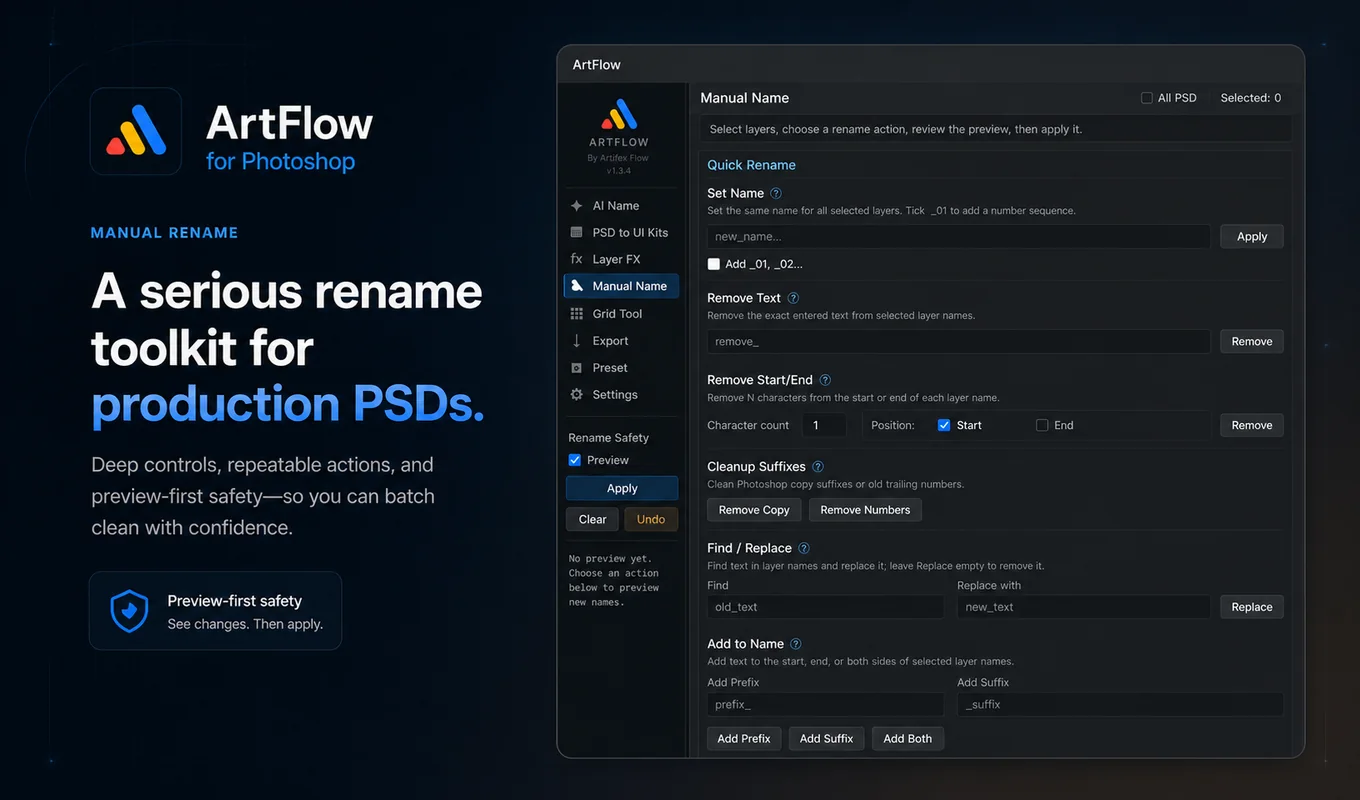
When Manual Name is the better tool
Use Manual Name when the desired change can be described as a rule. It is faster and more predictable than AI for cleaning imported files, applying a known prefix, replacing a project term, or making a numbered series.
Manual actions use the active layer scope and filters. Keep Preview enabled until the result list matches the intended Photoshop selection.
Set a fixed name
Enter a name and run Set Name. When several layers are selected, enable numbering to create a unique sequence such as:
ic_reward_01
ic_reward_02
ic_reward_03
With one selected layer, ArtFlow does not append a number solely because numbering is enabled.
Clean existing names
Use the cleanup actions for narrowly defined corrections:
| Action | Use it for | Example |
|---|---|---|
| Remove text | Delete a known fragment | icon_temp_coin -> icon_coin |
| Trim start/end | Remove a fixed number of characters | old_btn_play -> btn_play |
| Remove Copy | Remove Photoshop copy suffixes | btn_play copy 2 -> btn_play |
| Remove trailing numbers | Clear an obsolete sequence | icon_star_17 -> icon_star |
| Find / Replace | Change a project term consistently | store_coin -> shop_coin |
Run one logical cleanup at a time. A smaller preview is easier to verify and undo than a chain of unrelated transformations.
Add structure
Prefix, suffix, sequence, and case controls turn readable names into production names.
Close Button -> btn_close
Reward Icon -> ic_reward
Settings Panel -> fra_settings
For Unity UI, use the naming profile rather than inventing abbreviations. The prefix communicates role to the importer; the remaining stem communicates purpose to the team.
Use filters deliberately
Advanced filters limit which selected layers participate. They can include or exclude pixel layers, Smart Objects, text, groups, and hidden content.
Before applying a batch:
- Confirm the Photoshop selection.
- Confirm the enabled layer types.
- Decide whether hidden layers belong in the operation.
- Run the action and inspect the preview count.
If the count is surprising, clear the preview and correct the scope before applying.
Detect duplicates and invalid names
Check duplicates reports collisions without changing the PSD. Fix duplicates appends a unique number where required.
The validator checks the current profile. Fix All can convert names to snake_case, remove invalid characters, and keep the result unique. Automatic cleanup cannot infer a missing semantic role, so review generic names such as layer_01 or a frame named with ic_.
Preview, apply, and undo
The safe sequence is:
- Run one manual action.
- Review old and proposed names.
- Correct the scope or settings if needed.
- Choose Apply.
- Use Undo immediately if the committed result is wrong.
Changing an option invalidates an older preview. Run the action again so the visible proposal always corresponds to the current controls.
Important: Undo is a recent-action safety tool, not a replacement for normal PSD versioning. Save important documents before large production batches.